

Are you ready to unlock the power of visual storytelling? In today’s digital landscape, creating engaging videos is crucial for capturing audiences and conveying your message effectively.
Whether you’re a beginner or looking to enhance your existing skills, our comprehensive video editing software tutorial is designed to guide you through the basics and beyond.
By mastering the fundamentals of video editing, you’ll be equipped to produce professional-looking content that resonates with your audience.
Key Takeaways
Table of Contents
- Understand the basics of video editing and its importance in digital media.
- Learn how to navigate popular video editing software.
- Discover tips for creating engaging video content.
- Explore the benefits of mastering video editing skills.
- Get started with editing your own videos today.
Understanding Video Editing Software Basics
To create engaging video content, understanding the basics of video editing software is crucial. Video editing software is a powerful tool that enables users to manipulate video footage, add effects, transitions, and audio to create a cohesive visual narrative.
What Is Video Editing Software?
Video editing software is a program that allows users to edit, enhance, and manipulate video files. It provides a range of tools and features to trim, cut, and arrange clips, as well as add text, transitions, and effects.
Common Features of Video Editing Programs
Most video editing programs come with a variety of features, including:
- Cutting, trimming, and arranging clips
- Adding transitions and effects
- Incorporating audio tracks and voiceovers
- Color correction and grading
| Feature | Description | Benefit |
|---|---|---|
| Cutting and Trimming | Removing unwanted parts of a clip | Improves video flow |
| Transitions and Effects | Adding visual effects between clips | Enhances video engagement |
| Audio Tracks | Incorporating music or voiceovers | Adds depth to the video |
Why Video Editing Skills Are Valuable Today
Having video editing skills is highly valuable in today’s digital landscape. With the rise of social media and online content, the demand for high-quality video content has increased. Video editing skills are essential for creating engaging content that captures audiences and sets creators apart.
Choosing the Right Video Editing Software for Beginners
The world of video editing software can be overwhelming, but understanding your options is key to getting started. With so many programs available, each with its own set of features and pricing, selecting the right one can be a challenge.
Free vs. Paid Options
One of the first decisions you’ll need to make is whether to opt for free or paid video editing software. Free options like iMovie and DaVinci Resolve offer robust features at no cost, making them ideal for beginners on a budget. On the other hand, paid software like Adobe Premiere Pro and Final Cut Pro offer advanced features and support, making them suitable for those who plan to edit videos regularly.
Popular Beginner-Friendly Editing Programs
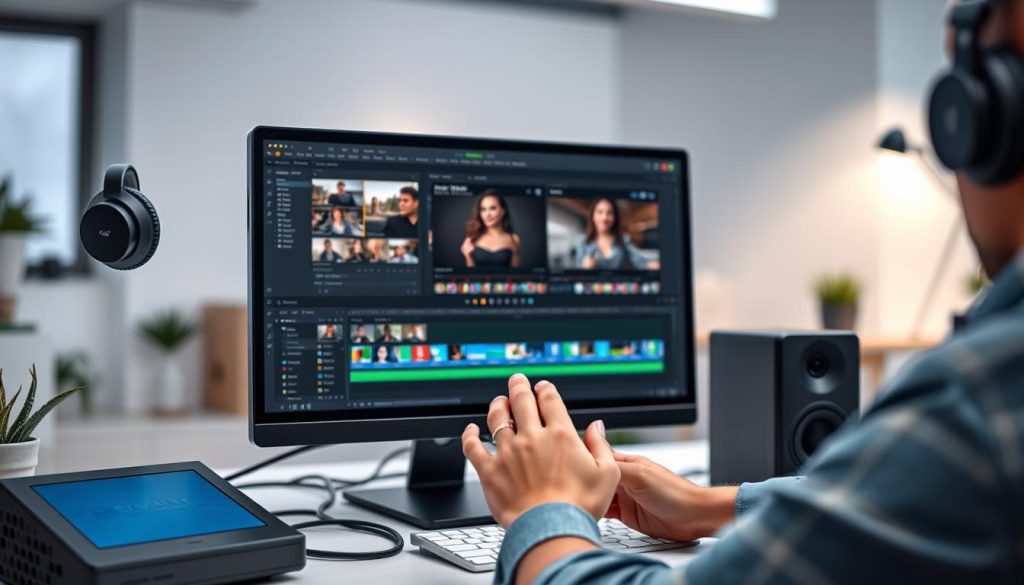
Some popular beginner-friendly editing programs include Adobe Premiere Elements, CyberLink PowerDirector, and Hitfilm Express. These programs offer a user-friendly interface and a range of features to help you get started with video editing.
System Requirements to Consider
Before choosing a video editing software, ensure your computer meets the system requirements. Check the software’s RAM, CPU, and storage requirements to avoid compatibility issues.
Mac vs. PC Considerations
Whether you’re using a Mac or PC, there’s video editing software available for your platform. Some software, like Adobe Premiere Pro, is available on both Mac and PC, while others, like Final Cut Pro, are exclusive to Mac.
Setting Up Your Video Editing Workspace
A well-organized video editing workspace is the foundation of a successful editing project. This involves several key steps to ensure you’re ready to edit efficiently.
Installing Your Chosen Software
First, you need to install your chosen video editing software. Follow the installation instructions provided by the software manufacturer to ensure a smooth installation process. Make sure your computer meets the system requirements for the software.
Configuring Basic Settings
After installation, configure the basic settings to suit your workflow. This may include setting up keyboard shortcuts, choosing default file formats, and adjusting the user interface to your liking.
Organizing Your Media Files
Organizing your media files is crucial. Create a clear folder structure on your computer to store your video and audio files, making it easier to locate them during the editing process.
Creating Project Folders
Finally, create project folders to keep your editing projects organized. This includes storing your project files, rendered videos, and any other related files in designated folders.
Video Editing Software Tutorial: Essential First Steps
Now that you’ve set up your video editing workspace, it’s time to dive into the essential first steps of video editing. This foundational knowledge will help you navigate your editing software with confidence.
Importing Media Files
The first step in any video editing project is importing your media files. This includes video clips, audio tracks, and still images. Most video editing software allows you to import files by dragging and dropping them into the program or by using an ‘Import’ button. Ensure your files are organized in a way that makes it easy to find and use them in your project.
Understanding the Timeline Interface
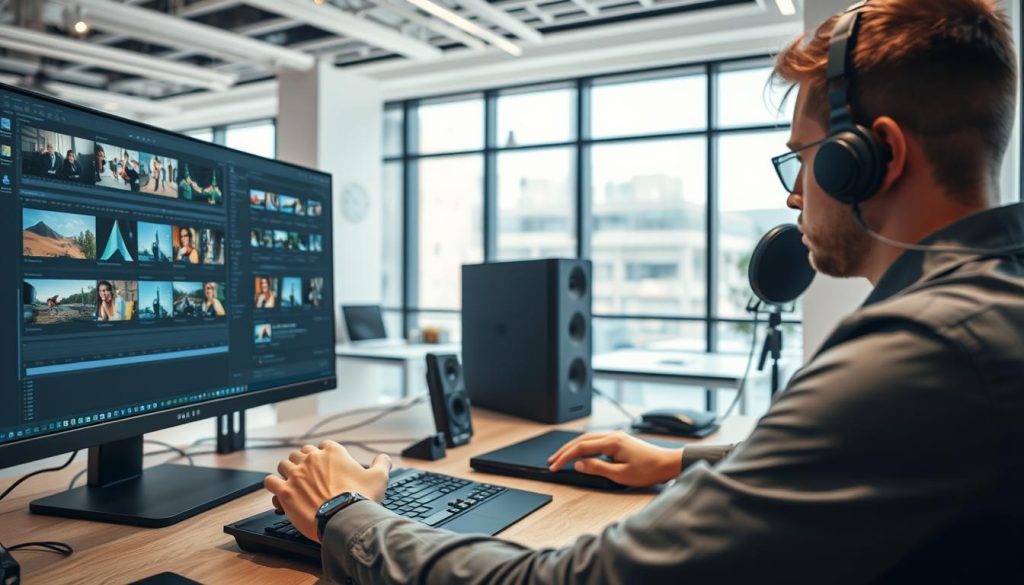
The timeline interface is where you’ll spend most of your time editing. It’s a visual representation of your project, showing how your clips and audio are arranged over time. Familiarize yourself with the different elements of the timeline, such as video and audio tracks, to effectively build your narrative.
Making Your First Cuts
Making your first cuts is a crucial step in shaping your video’s narrative. Use your software’s cutting tools to trim unwanted parts of your clips or split them into manageable sections. This process helps you refine your story and maintain viewer engagement.
Saving Projects and Creating Backups
As you work on your project, it’s vital to save your work regularly and create backups. Most editing software autosaves, but manual saving ensures your progress is secure. Consider saving different versions of your project as you make significant changes, and backup your files to an external drive or cloud storage to prevent data loss.
Mastering Basic Editing Techniques
To create captivating videos, understanding basic editing techniques is essential. These fundamental skills allow you to refine your narrative, control the pacing, and enhance the overall viewing experience.
Trimming and Splitting Clips
Trimming and splitting clips are basic yet powerful techniques. Trimming allows you to remove unwanted parts of a clip, while splitting enables you to divide a clip into sections for more precise editing. This helps in maintaining a smooth flow and keeping your video engaging.
Adding Transitions Between Scenes
Transitions help in creating a seamless flow between different scenes. By adding transitions, you can guide the viewer through your narrative, making it more cohesive and visually appealing.
Adjusting Video Speed
Adjusting the speed of your video can significantly impact its pacing. Speeding up or slowing down clips can be used to create dramatic effects or to fit the video into a specific timeframe.
Working with Audio Tracks
Working with audio tracks is crucial for a well-rounded video. This includes adjusting volume levels to ensure that dialogue and background sounds are balanced.
Adjusting Volume Levels
Properly adjusting volume levels ensures that your audio is clear and enjoyable. It’s about finding the right balance between different audio elements.
Adding Background Music
Adding background music can enhance the mood and atmosphere of your video. It’s essential to choose music that complements your narrative.
Enhancing Your Videos with Effects and Text
Adding text overlays and visual effects can transform your ordinary videos into something extraordinary. With the capabilities of modern video editing software, you can significantly enhance your content to engage your audience more effectively.
Adding Text Overlays and Titles
Text overlays and titles are essential for providing context to your videos. They can be used to introduce scenes, provide explanations, or highlight important information. Most video editing software allows you to customize the font, size, color, and position of your text.
Applying Color Correction and Grading
Color correction and grading are crucial for achieving a specific look or mood in your videos. By adjusting the color palette, brightness, and contrast, you can create a visually appealing and consistent aesthetic throughout your video.

Using Visual Effects and Filters
Visual effects and filters can add a creative touch to your videos. From simple transitions to complex effects, these tools can enhance the viewing experience and make your content stand out.
Creating Picture-in-Picture Effects
Picture-in-picture effects allow you to display multiple video streams simultaneously. This can be useful for tutorials, commentary tracks, or simply adding variety to your content.
| Effect Type | Description | Use Case |
|---|---|---|
| Text Overlay | Adds text to your video | Intro titles, subtitles |
| Color Grading | Adjusts color and brightness | Creating a specific mood |
| Visual Effects | Adds special effects | Transitions, animations |
Exporting and Sharing Your Finished Videos
After completing your video editing project, the next crucial step is exporting and sharing your finished videos. This process involves several key considerations to ensure your video looks great on various platforms.
Choosing the Right Export Settings
Selecting the appropriate export settings is vital for achieving the desired video quality. Most video editing software provides presets for common platforms like YouTube, Facebook, and Instagram. These presets help in optimizing your video for specific requirements such as resolution, frame rate, and file format.
- Resolution: Match the resolution to the platform’s requirements.
- Frame rate: Ensure the frame rate is compatible with the target platform.
- File format: Choose a format that is widely supported.
Optimizing for Different Platforms
Different social media platforms have unique video specifications. For instance, YouTube supports 8K resolution, while Facebook and Instagram have different requirements for video length and format. Understanding these specifications is crucial for optimizing your video.
| Platform | Recommended Resolution | Max Video Length |
|---|---|---|
| YouTube | 1080p or 4K | 12 hours |
| 1080p | 240 minutes |
Understanding Video Compression
Video compression reduces the file size of your video, making it easier to share and upload. However, it’s a balance between file size and video quality. Codecs like H.264 and H.265 are commonly used for compression.
Direct Uploads to Social Media
Many video editing software solutions allow for direct uploads to social media platforms. This feature simplifies the sharing process and saves time. Ensure you’re using the most current version of your editing software to access this feature.
By following these guidelines, you can ensure your videos are exported and shared effectively, reaching your audience with the best possible quality.
Mastering Video Editing: Your Next Steps
Now that you’ve completed this video editing software tutorial, you’re equipped with the essential skills to create professional-looking videos. From understanding the basics of video editing software to mastering editing techniques and exporting your finished videos, you’ve covered a range of topics designed to boost your confidence in video editing.
As you continue on your video editing journey, remember that practice is key to improving your skills. Experiment with different techniques, explore the features of your chosen software, such as Adobe Premiere Pro or Final Cut Pro, and stay updated with the latest video editing tips and tricks. With dedication and creativity, you’ll be able to produce high-quality videos that captivate your audience and leave a lasting impression.
By following this video editing tutorial conclusion, you’re now ready to take your video editing skills to the next level. For a comprehensive video editing software summary, refer back to the previous sections, and don’t hesitate to revisit specific topics as needed. Keep creating, and you’ll soon become proficient in producing engaging videos that resonate with your viewers.
FAQ
What is the best video editing software for beginners?
The best video editing software for beginners includes iMovie for Mac users, Adobe Premiere Elements for both Mac and PC, and DaVinci Resolve, which is available for free on multiple platforms.
How do I choose the right video editing software?
To choose the right video editing software, consider your operating system, the type of projects you’ll be working on, your budget, and the level of complexity you’re comfortable with.
Can I edit videos on my smartphone?
Yes, you can edit videos on your smartphone using apps like Adobe Premiere Rush, iMovie (for iOS devices), or InShot, which are designed to make mobile video editing easy and efficient.
What are the basic video editing techniques I should know?
Basic video editing techniques include trimming and splitting clips, adding transitions, adjusting video speed, and working with audio tracks, such as adjusting volume levels and adding background music.
How do I export my edited video for social media?
To export your edited video for social media, choose the right export settings based on the platform’s requirements, such as resolution, frame rate, and file format, and consider optimizing your video for the specific platform.
What is video compression, and why is it important?
Video compression reduces the file size of your video to make it easier to share or upload, while maintaining an acceptable level of quality. It’s crucial for balancing quality and file size, especially for online sharing.
Can I add text and effects to my videos?
Yes, most video editing software allows you to add text overlays, titles, and various visual effects to enhance your videos. You can also apply color correction and grading to achieve a specific look.
How do I organize my media files for video editing?
Organizing your media files involves creating project folders, categorizing your files, and ensuring that all related media is stored in an accessible location, making it easier to manage your project.